
Learn about all of the Application form type settings and how they function.
What's included in this article?
The type of form will dictate what settings are available at the form process, form step, and form field levels. The Application form type has many settings at each of these levels to create a custom and flexible application flow that meets your needs.
Form Process Settings
Form Process level settings will affect the entire form. These settings apply to ONLY the form they are enabled on, not any other forms.
Allow Applications to be Ranked - This setting will allow applicants to rank each program choice selected in this form against each other.
- Separate Category Rankings - Only available if "Allow Applications to be Ranked" is enabled. This setting separates programs selected into their different program categories. The program choices are ranked against each other only within their program categories.
- Disable Application Ranking Changes After Submission - Only available if "Allow Applications to be Ranked" is enabled. If this setting is enabled, the ranking cannot be changed after the form is submitted.
Enable Student Lookup - This gives guardians the ability to lookup their student using the SIS ID and attach any existing student profiles to the form that is being completed.
-
Student Lookup Required - Only available if "Enable Student Lookup" is enabled. This requires the guardian to look up their student by SIS ID when starting a new form for this form process.
Read this article to learn more about Student Lookup.
Enable Neighborhood School Banner - This shows the applicant's Neighborhood School in the program choice selection step. The Neighborhood School is determined based on the applicant's grade and address entered in Student Information.
Read this article to learn how to display zone/neighborhood schools to guardians.
Enable Appeals - Only available if you are using the Appeals feature. This enables an appeals process to be tied to the form process it is enabled for.
- Choose Appeal Form - Only available if "Enable Appeals" is enabled. This dropdown is where you select what appeal form is related to the form process.
Allow Program Changes After Lottery - Used in combination with the Allow Changes After Submission and Allow Changes when Window Closed settings on the Form Step level, this new setting (introduced in v3.3.3) will prevent or allow those step level changes from being made after a lottery is run. Organizations that want to disable all changes to a form step after a lottery is run should ensure this setting is not checked.
Form Step Settings
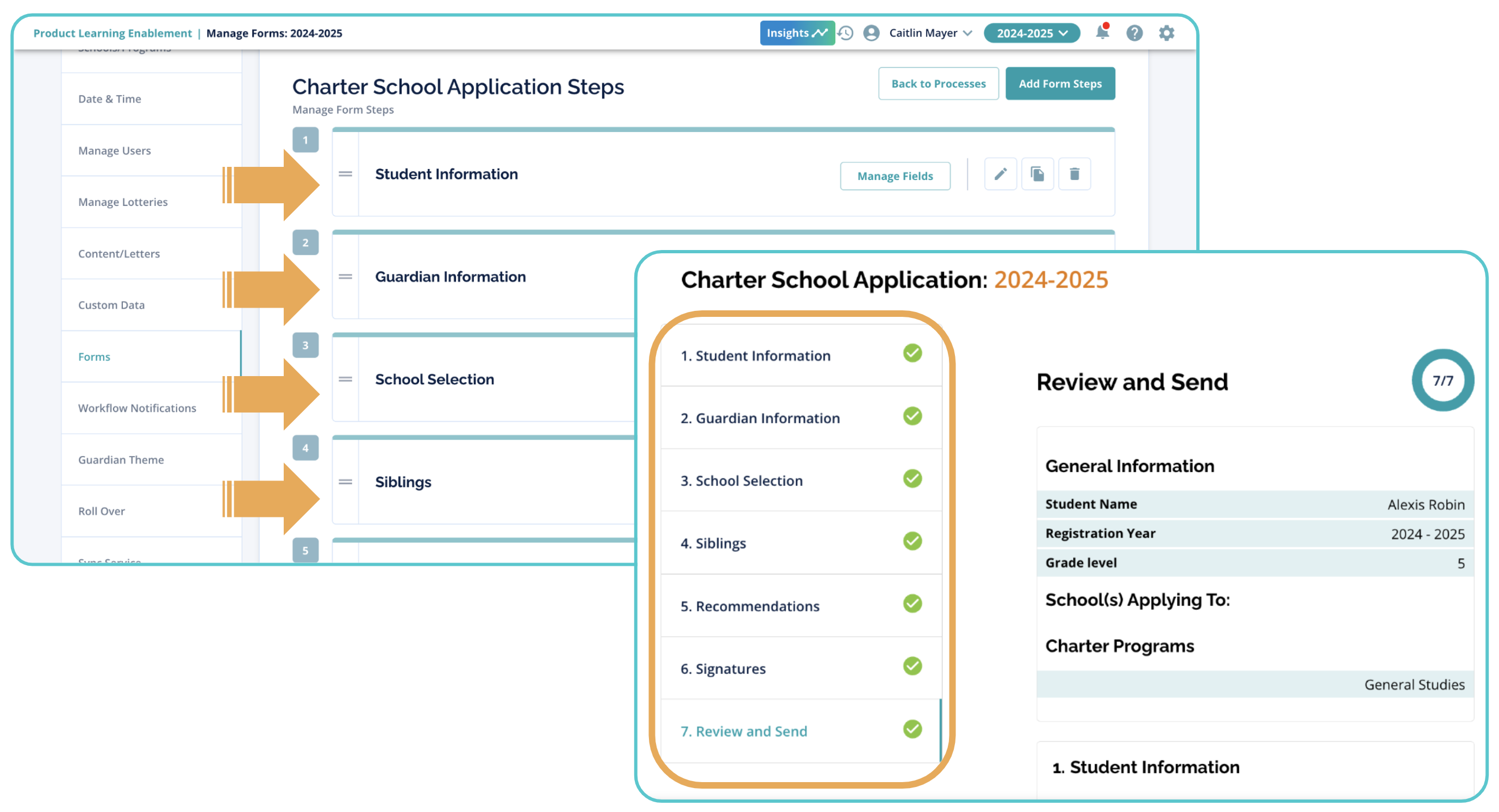
Form Step level settings will affect just the step of the form they are enabled on. These settings apply to ONLY the form step they are enabled on, not any other steps.
Allow Changes After Submission - When selected, guardians can update fields within this step after the form is submitted. When not selected, guardians will not be able to access the step at all after submission.
Admin Only - When selected, the step will ONLY show to admin users, and guardians will never see the step.
Allow Changes When Window Closed - When not selected, guardians can update fields within the step ONLY when the application window is open. When selected, guardians are able to update the fields even after the application window is closed. This setting applies to applications that have been submitted as well as applications that are incomplete. In other words, if this setting is disabled, applications that have not been submitted before the application window is closed will be unable to finish and submit the application.
User Group Restrictions
- Hide this step from user group(s) - This will completely hide the step from admin users who are a part of any selected user groups.
- Give view-only access to user group(s) - This will prevent any admin users part of selected user groups from making changes to fields in this step.
Read this article to learn how to hide/show form steps on your Application or Registration form.
Form Field Settings
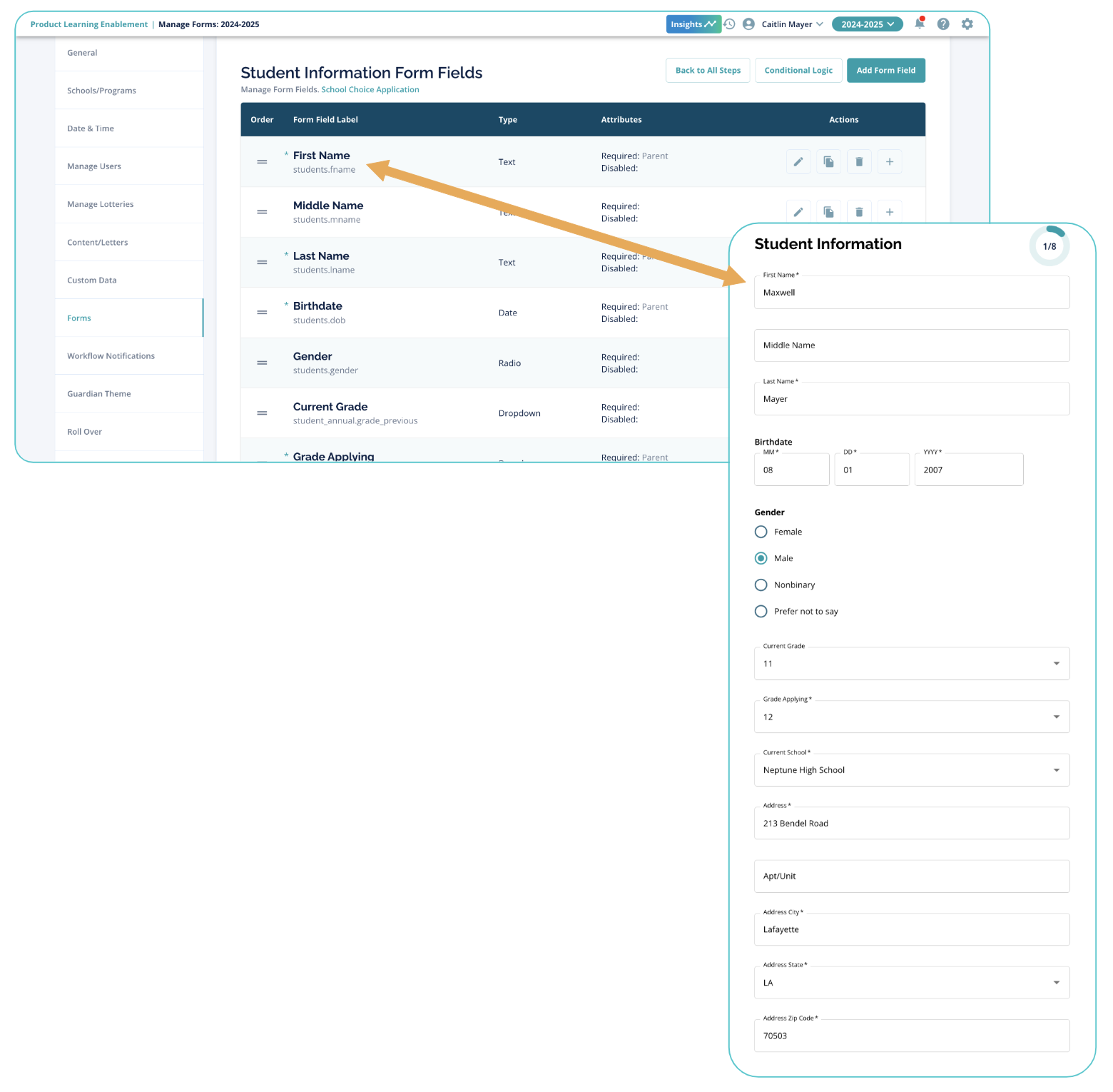
There are a variety of form field types available in the form builder. These form field types will be different based on the type of form they are located in. The settings available for each field type will also vary based on the type of form, but a handful of standard settings are on all fields in the application form.
Required for Guardian - Makes the field required for guardian users. If the field does not receive a response during the submission process, the guardian will receive an error and will be unable to save the step and continue to the next step.
Required for Admin - Makes the field required for admin users. If the field is empty when an admin tries to save an application form, the admin will receive an error and the application will not be saved.
These settings work independently of each other but can be used together.
These advanced options are not required, but they give you more control over who sees what questions and what fields can be updated by the guardian. These settings are especially useful if you have a student data import and export process.
Disable After Submit - The guardian will be able to enter information into the field when filling out the application form, but upon submission of the form, the field will no longer be editable. This is true even if the step is set to be editable after submission.
Disable for SIS Students - This setting will disable the field for any student who has been imported into the Enroll platform with an SIS ID. The field will be viewable but not editable, even if no data is available in that field.
Disable Always (Read Only Current Value) - This will disable the field entirely for all students. The field will be viewable but not editable and will contain any data that has been imported. If no data was imported, the field will remain disabled.
Disable After Value is Set - This will disable the field from being edited after a value is saved to the field. This means that the field will be disabled as soon as data is saved to it when the form step is saved during the submission process.
Admin Only - The field will be available ONLY to admins, even if the step is available to guardians.
Hide for SIS Students - This will hide the field for any students who have an SIS ID set in the Enroll platform. The field will still display for any students who do not have an SIS ID (typically, this means "new" students).
Hide for New Students - This will hide the field for any students who do NOT have an SIS ID set. This field will display for any students who do have an SIS ID.
Restrict to Selected Grades - When this setting is selected, all grades in Enroll will display. Any students applying to the grades selected will be able to see this field, and it will be hidden from students applying to grades not selected in the field settings.
Clear on Roll Over - When enabled, all data saved to this field will be cleared out for the future school year during the rollover process. This does not clear out the data in the year the setting is enabled, it just tells the rollover process that data saved in Year X should not carry over to Year Y.
Comments
0 comments
Article is closed for comments.